We tried Google’s AI glasses and they’re almost there
At the Google I/O developer conference this week, we had the opportunity for a brief hands-on with Google’s upcoming AI-powered glasses – not the audio-only glasses which the company said will ship this fall, but rather the glasses that offer a combined audio and visual experience.
First announced at last year’s event, these Android XR glasses offer an in-lens display that shows useful information for you, overlaid on the real world. This includes widgets that can display things like weather, walking directions, Uber pickup details, live translation and more, even widgets that you design yourself using AI.

The glasses will also pair with iOS and Android phones, the company noted, in both the audio-only format and the future display version.
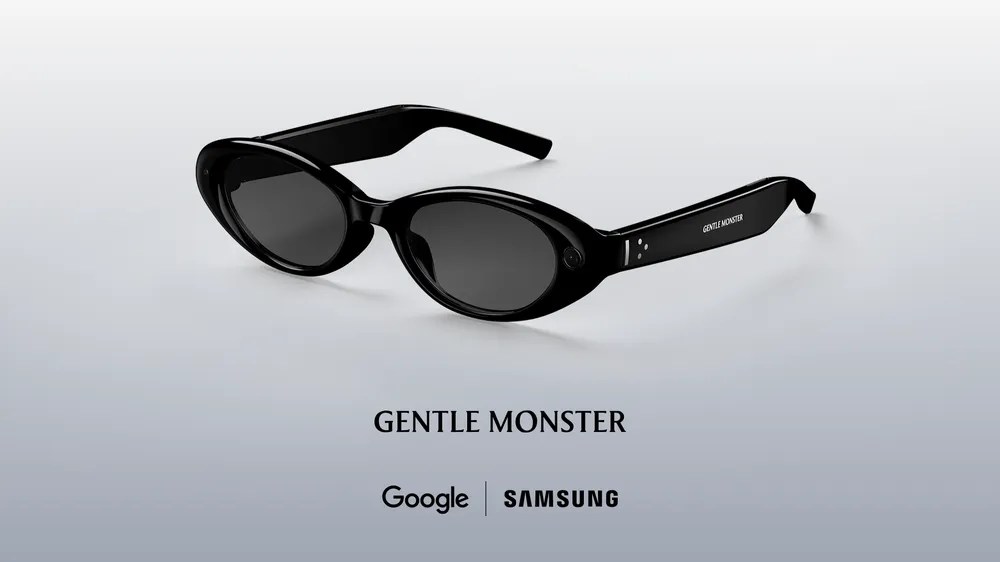
The glasses with display are intended as the next step after the first generation of audio glasses that will be launched later this year. The glasses were developed in collaboration with Warby Parker, Gentle Monster and Samsung, combining Google’s technology with the design aesthetic of their brands.
Meanwhile, the glasses we tested were still a prototype, although they had been polished enough to now be tested externally. The representatives demonstrating the XR glasses explained that the prototype allowed Google to not worry about some cosmetic details regarding different styles and shapes, but instead focus on experimenting more freely with the display technology and its impact on battery life. That means these glasses are very different from any future shipping version of glasses, in terms of fit, shape, dimensions and attention to detail. Rather, it’s like you can experiment with the “inside” of the glasses while still being in a simple, comfortable frame.
The shipping version of the glasses can detect when the glasses are placed on your head and taken off, but the glasses we tried did not have this feature.

To activate Gemini, press the right side of the glasses frame for two seconds. A startup sound will sound to let you know Gemini is on and listening. In the demo version, starting Gemini also starts the camera at the same time, but in the shipping version the user can configure whether to turn on the camera when Gemini starts.
In a first test, we played music through the glasses by asking Gemini to play a favorite artist. The venue was unfortunately too noisy to assess the sound quality, as the music was at maximum volume and was still relatively difficult to hear clearly and in detail. But the first impression from this limited experience was that the glasses wouldn’t be a good replacement for higher quality earbuds, although they would if you just wanted some music while you were outside, walking, or doing chores around the house. The benefit of not having earbuds is that it’s easier to hear someone talking, compared to the transparency mode experiences on devices like Apple’s AirPods.
To turn off the music, tap the side of the frame once, around the center, as if you were tapping your temple.

In the second test, we pressed the photo capture button to take a photo of a person. The display was off, so the photo was transferred to our phone and watch. (Later you can record video with a long press, but this option was not available to test with the prototype. In the case of video, you will see a thumbnail preview of the video instead of a photo.)
You can also simply ask Gemini to take a photo without having to press the photo button, and perform some kind of AI manipulation on the result. For example, you can say something like, “Take a photo and turn the person into an anime character.” The photo is sent to the phone, then to the Gemini and Nano Banana servers, and then returns in the edited version.
At the Google I/O location, where the WiFi was heavily loaded, the round trip took about 45 seconds.

When the display is on, you will see a simple home screen appear in your field of view. The demo version had some pre-loaded widgets that showed the weather and a countdown to Google’s I/O event. You can also build fast launchers into specific apps, such as Google Maps or Translate, if these were among your main use cases for the glasses.
The prototype had only one display for the right eye, but the platform supports both single and dual displays, as well as audio-only glasses. The image itself was a bit blurry, but we attributed this to our prescription contact lenses, where we wore a lens optimized for distance vision on one side, and a lens optimized for near vision on the other side. When we closed one eye, the image came into clearer focus, but the experience almost immediately left us with some eye strain above the right eye, and it’s unclear whether this was entirely due to the prescription.

One of the best demos was of the translation experience on the glasses, which is supported by the Google Translate app on the phone. One of the demonstrators spoke fluent Spanish and the glasses automatically recognized the language and showed the text in English on the display, while Gemini spoke English into our ear. We could see world travelers buying the glasses for this experience alone.
We should note that Translate also works on the audio-only glasses, without displaying the text on the glasses. Instead, if necessary, you can see the transcription on the phone, in addition to the real-time audio feedback.
Another demo involved using the glasses to navigate. While we obviously can’t take a walk and leave the site to test its accuracy, we can get an idea of how it works. You can start the Google Maps experience by asking Gemini to navigate to a destination – which can even be as vague as something like ‘the nearest coffee shop’.
Gemini activates Google Maps on the phone and after a short delay while the experience loads, the glasses display turn-by-turn directions. When you look ahead, information about your next turn is displayed. But if you need to orient yourself in space, look at the ground to see your blue dot on a map. You can also twist left and right to rotate in space, just as you would try to get the blue dot on your phone to point the right way.
If you then look up again, you can continue walking without the map getting in your way.
Because the experience is linked to Google Maps on your phone, saved destinations such as ‘home’ and ‘work’ are already available.

We were also able to briefly use the glasses to identify different objects in our vision and ask questions about them. The glasses initially had trouble identifying the replica Monet painting on a shelf in front of us, but that’s because the prototype didn’t automatically turn on the camera – it had to be re-enabled from the app. Still, it took a few questions before Gemini said it looked like a Monet, even after we moved closer to focus on Monet’s signature on the bottom left.
Other tests went more smoothly, as the glasses immediately identified the plant on the shelf and answered questions about various recipes in a book. Still, these were things you could do today with Google Lens (or other AI models integrated into chatbot apps), although we suppose it would be interesting to be able to do them without having to take out your phone.
Google says it will have more to say about its Android XR display glasses later this year when it expands its trusted tester program.

In the meantime, the company believes audio will be sufficient for some users’ needs, which may be a smart way to cash in on the fact that it doesn’t have its display glasses ready despite competition from Meta and Snap on this front.
Like the display version, the audio glasses also offer access to Google’s Gemini AI, which you hear privately through the speakers of the glasses frame. For example, from these glasses you can listen to music, press a button to take a photo, make calls or use your phone apps, just like on the future screen versions.
Tapping into other third-party apps wasn’t among the items we demonstrated, but the glasses allow users to tell Gemini to do things like “take the ingredients from this recipe and add them to my shopping list.”
In another example Google showed off during the event’s keynote, the glasses could see a meal the wearer was cooking on the stove and provide feedback about the meal, such as whether the meat was fully cooked yet.
When you make a purchase through links in our articles, we may earn a small commission. This does not affect our editorial independence.