How to Get a Google Voice Number for Personal and Business Use
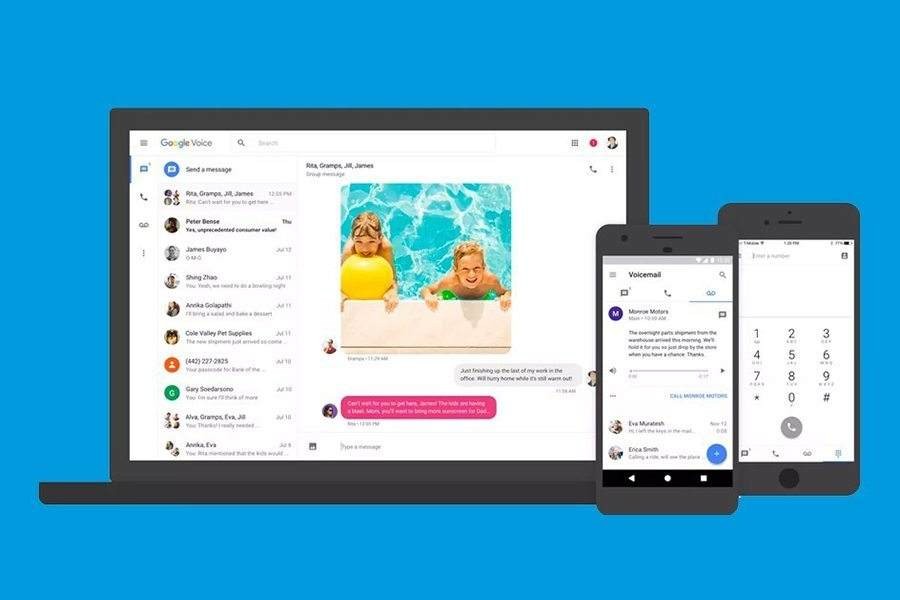
Getting a Google Voice number is quick and straightforward: sign in with your Google account, choose your number, and complete the setup in minutes. As of 2026, Google Voice is also available as a stand-alone subscription, making its business plans more accessible to solopreneurs and small teams.
Google has continued to improve Voice with a cleaner interface, streamlined call management, and tighter integration with Workspace apps. Paid plans start at $10 per user per month and include essential business features such as call routing, voicemail transcription, and administrative controls. Subscribing also helps businesses stay aligned with evolving US messaging and telecom regulations.
In this step-by-step guide, I’ll walk you through how to get a Google Voice phone number and share practical tips for using it effectively for both personal and business use.

Lead Writer, VoIP at Fit Small Business
Free Google Voice vs Google Voice for Business
Before late 2025, Google Voice for business required a Google Workspace subscription. As of 2026, Google has introduced Google Voice Starter, a standalone paid plan that no longer requires Workspace, making it easier for small businesses and solopreneurs to get started.
Today, users can choose between three options: the free version for personal use, the new Google Voice Starter plan for basic business needs, and the Google Voice Workspace add-on for larger teams that need advanced features and full integration. Note that the Google Voice add-on for Workspace also has a Starter plan, so it is important to differentiate between the two.
To help you choose the right option, here’s a clear breakdown of what each plan offers.
- Free Google Voice: Best for personal use only; not designed for teams or business communication.
- Google Voice Starter (Voice only): Affordable entry-level business plan for one user without requiring Google Workspace.
- Google Voice Workspace Add-on: Advanced business solution with team features, admin controls, and Workspace integrations.
How to get a Google Voice number
Step 1: Create a Google account
To get a Google Voice number, you need an active Google account. If you already have one, skip this step and proceed to the next one. Otherwise, go to the Google Account sign-in page and click Create account. Fill out the form fields with basic information such as your full name and birthday. Then pick a Gmail address from the provided options or create your own.
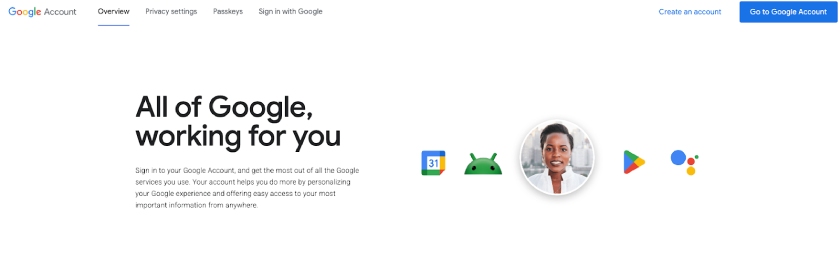
Choose between the two options: Create an account or go to Google Account
Step 2: Choose between a personal or business plan
To complete your account setup and get started with your Google account, choose between the two account types: personal and business.
For personal use
If you need a free Google Voice number for home or individual use, choose For personal use. Select your preferred device (Android, iOS, or Web). If you want to use your phone to sign up, select Android or iOS to download the Google Voice app. If you opt for the Web option, enter your credentials and agree to the terms of service to continue.
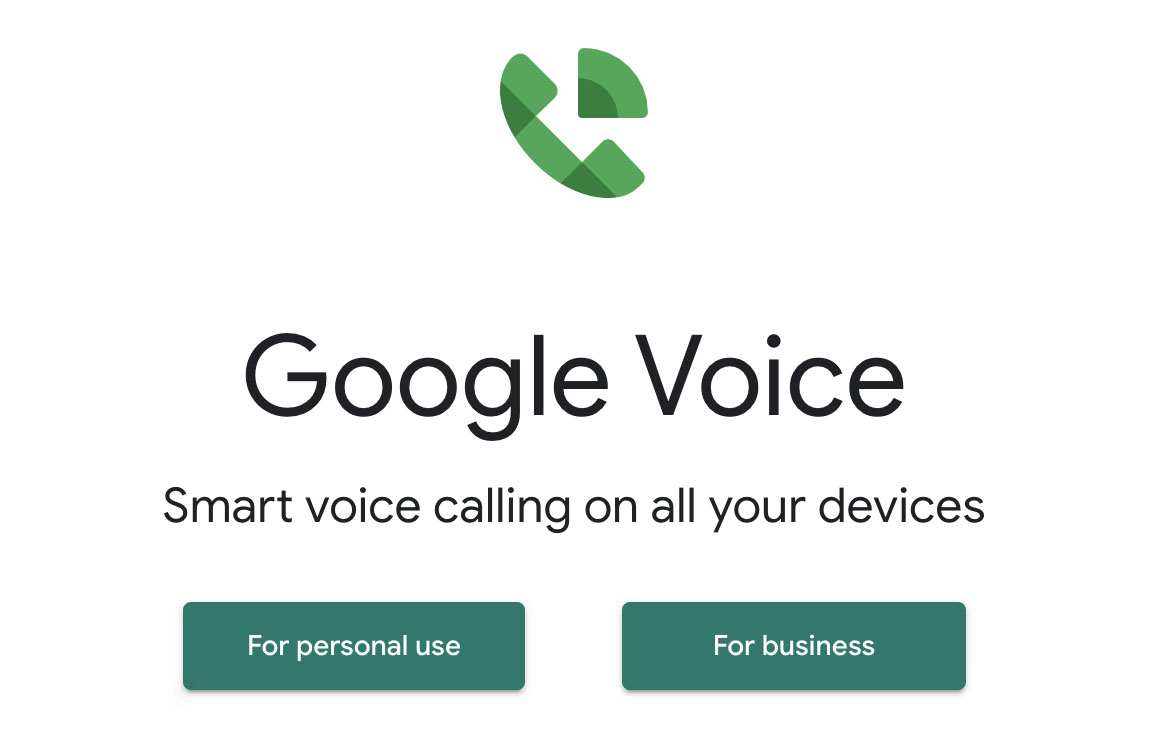
Determine the main purpose of your Google Voice account. (Source: Google Voice)
For business use
There are two different ways to sign up for a business version of Google Voice. Small teams and solopreneurs can choose the stand-alone version of Google Voice Starter, which offers a single business phone number for a single user with basic phone features.
However, if you have a larger team that needs multiple devices, you should consider the Google Voice add-on for Google Workspace. If you don’t have a Workspace account, you will need to purchase one in addition to a Google Voice subscription. Workspace plans start at $7 per month for annual subscriptions, and Google Voice plans start at $10 per month.
Step 3: Pick and verify your Google Voice number
The next step to getting a Google Voice number is to look for available numbers by city or area code. Available numbers will be displayed. If none of the options shown work for you, select Show more to see more options. Hit Select once you’ve decided on a phone number.
Google Voice offers a pool of local numbers for business subscribers, depending on the domestic countries you list upon sign-up. Search by city or area code and assign virtual phone numbers to each user added to the account.
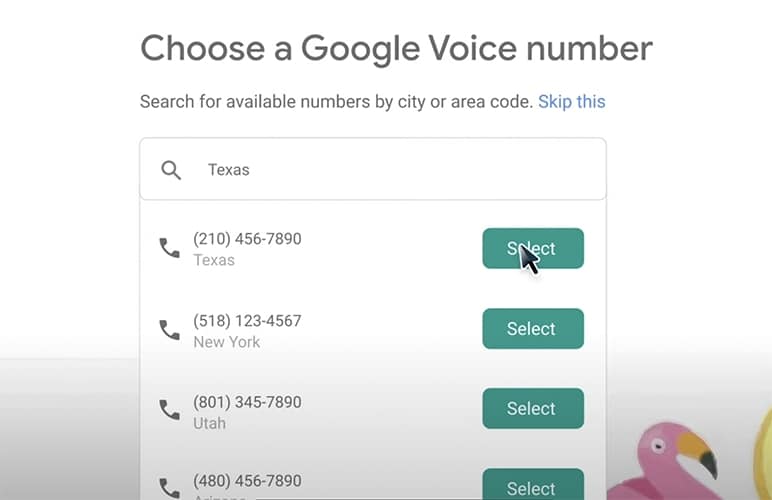
Select a number from the list of available combinations based on your city or area code provided. (Source: YouTube)
The next page will display your selected phone number. For verification purposes, link your existing phone number. Make sure to use a mobile or landline number based in the US. Note that Google Voice doesn’t allow VoIP numbers to verify an account.
After you’ve entered a number, Google Voice will send a six-digit verification code via text. For business landline systems, you will receive a voice call with the code. Once you’ve received code, enter it in the space provided and click Verify to complete your account setup.
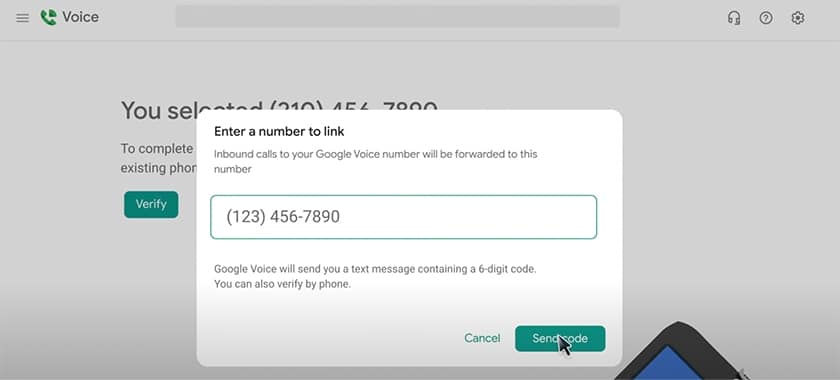
A US-based non-VoIP number is required to verify your new Google Voice number. (Source: YouTube)
Select Claim to get the number, and a confirmation prompt will inform you that your existing number has been added and successfully linked to your Google Voice account. Click Finish to complete the process.
Step 4: Set up your Google Voice number
Setting up Google Voice on your mobile phone is highly recommended to take full advantage of its VoIP phone features. This way, you can manage calls and messages seamlessly, no matter where you are.
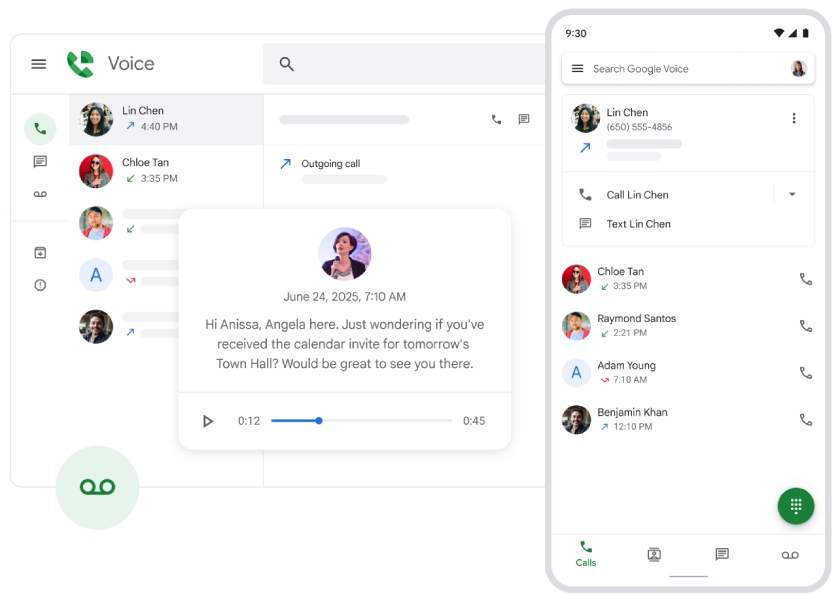
Google Voice works on desktops, laptops, mobile devices, and compatible desk phones. (Source: Google Voice)
Use your Google Voice number to make domestic and international calls, send texts, and leave voicemails. With its VoIP features, you can streamline business communication and access tools like call forwarding and ring groups to enhance team collaboration.
You can change your Google Voice number once a year. If you decide to switch and later find the new number unsuitable, Google lets you reclaim your original number for up to 90 days.
Step 5 (optional): Port or transfer your existing number
If you have a personal account, you need to pay a one-time $20 fee to port your mobile number to Google Voice. Go to Settings > Account, click Port a number, then Get Started. Enter the number you’d like to port and request verification. As a final step, you need to provide your account details, including account number, PIN, and billing address.
However, if you upgrade from a personal to a business account, you can also request a transfer of your Google Voice number to a Workspace domain by going directly to Account Settings > Transfer your number to another Voice account. Then simply provide your number and email address.
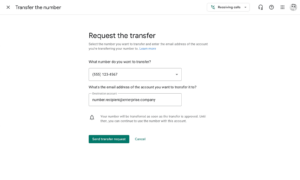
Easily transfer your Google Voice number across accounts. (Source: Google)
Step 6: Start maximizing your Google Voice number
Google Voice is a great way to stay connected with people while keeping your real number private. I recommend using your Google Voice number on online forms or websites to protect your privacy and avoid unwanted calls or messages.
Google Voice also lets you customize voicemail greetings and create personalized messages for specific groups (e.g., family and friends, or unknown callers). It works across devices, which means you can send text messages and make calls from your phone, tablet, or computer. Regardless of what device you use, your messages will stay in sync.
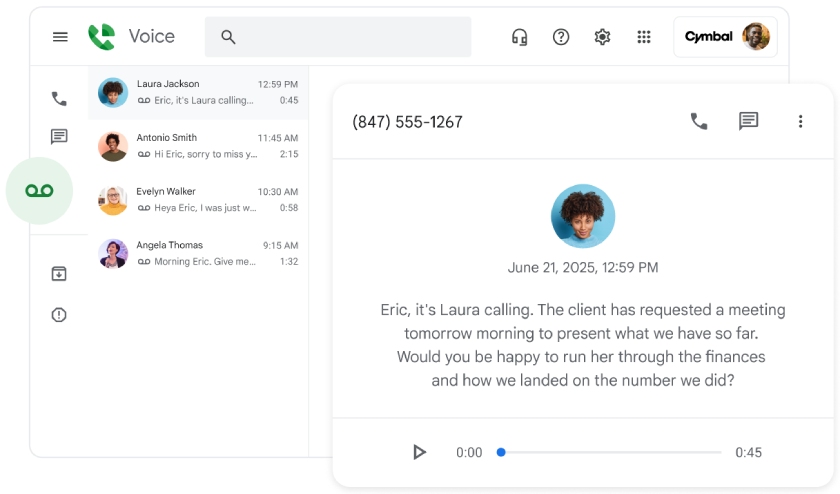
Google AI transcribes voicemails automatically. (Source: Google Voice)
Google Voice utilizes artificial intelligence (AI) to filter spam calls. If you choose to upgrade to a higher Google Voice plan within Google Workspace, you can also access advanced reporting tools and automatic call recording. For business plans, this platform also integrates with Gmail and other Google services, enabling automatic call transcription to be sent to your inbox for review.
If Google Voice feels too limited, especially when it comes to integrations, call routing, and team collaboration, you’re not alone. Many small businesses eventually upgrade to a more robust VoIP system with advanced features like toll-free numbers, CRM integrations, and call center analytics.
To learn more, check out our expert picks for the best Google alternatives.
Pros and cons of Google Voice
Google Voice is one of the best business phone systems, thanks to its low-cost access to virtual phone numbers. If you’re still undecided if it’s the right phone solution for your organization, here’s a quick overview of its key advantages and disadvantages:
Frequently asked questions (FAQs)
Yes, you can, but you need a Google Workspace subscription, and your country must be supported by Google Voice. As of April 2026, Google Voice is available in Belgium, Canada, Denmark, France, Germany, Ireland, Italy, the Netherlands, Portugal, Spain, Sweden, Switzerland, and the UK.
Yes, when you set up Google Voice, you can choose from a list of available numbers sorted by city or area code. You may not always find the combination that you want, but you can pick a number that’s easy to remember or one that resonates with your brand.
No, Google Voice works over the internet and does not require a SIM card. Once you’ve linked your Google Voice number to an existing mobile or landline, you can start making and receiving calls through the mobile or web app.
Bottom line
Google Voice works on multiple devices, allowing you to respond to calls and texts from anywhere, without being tied to a single device. The key consideration when getting a Google Voice phone number is its primary purpose.
If it’s personal use, like for solo projects or you simply want a second line, go for the free Google Voice option. If you intend to use the phone number for your business, choose the paid version, which offers HIPAA compliance and more extensive security features.
Source link