Best Self-Service Kiosks for Small Businesses (2026)
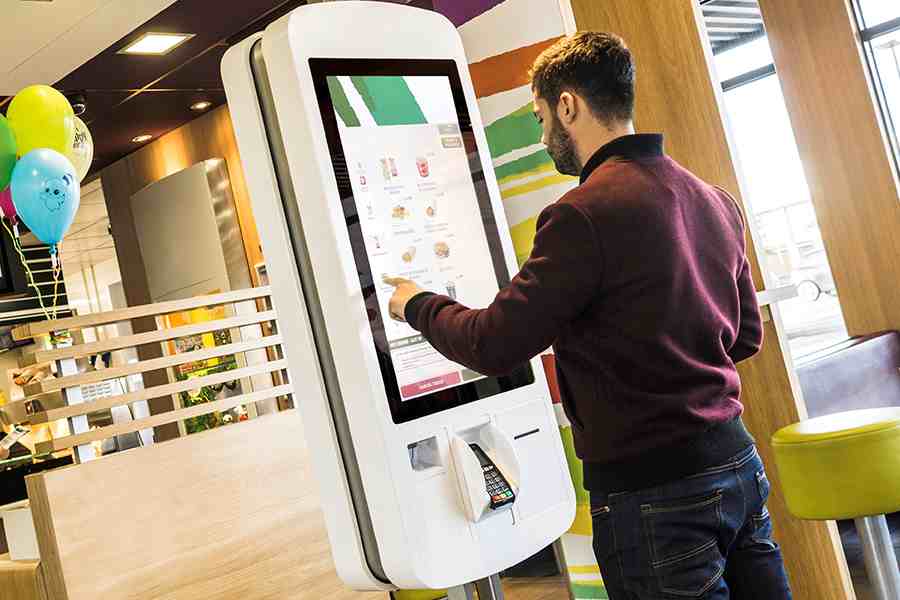
Self-service kiosks are customer-facing devices that let customers place orders, make purchases, check in for appointments, and pay without staff assistance. The best kiosk software supports complex tasks such as food modifiers, ticketing, and appointment details, while also prompting add-on sales and capturing customer data for marketing.
Adoption is accelerating as customers increasingly prefer fast, independent service. About 77% of shoppers prefer self-service options like kiosks to staffed checkout, making these systems an important tool for improving efficiency and meeting customer expectations.
I reviewed more than a dozen kiosk systems used by small restaurants, retailers, grocery stores, and ticketed venues, comparing cost, hardware flexibility, features, integrations, and ease of use. Based on that evaluation, the table below highlights the best self-service kiosks by use case and where each system performs strongest.
How do the best self-service kiosks compare?
I compared more than a dozen self-service kiosk systems based on what matters most to independent business owners, including total cost, ordering and payment functionality, POS integrations, and ease of use for both customers and staff. I also factored in hands-on feedback from our retail and restaurant experts, along with real-world usability and value.
Below is a breakdown of how I evaluated each system:
25% of Overall Score
I looked at whether each provider offers a free plan, free trial, or an entry-level option under $75 per month. I also compared hardware costs and gave preference to kiosk systems that run on commonly available hardware like iPads. Systems that support multiple payment processors scored higher, since this gives businesses more flexibility to shop for better processing rates. I also evaluated how each kiosk handles cash payments.
10% of Overall Score
I awarded points to kiosk systems that support multiple hardware setups or software workflows. This includes countertop, wall-mounted, and floor-standing configurations that can adapt to different business types and layouts.
20% of Overall Score
I evaluated whether kiosks support complex orders with modifiers, combos, and upsells that can increase average order value. I also looked for broad payment support, including cards, mobile wallets, and cash, where available. Systems that collect customer data for loyalty or marketing and integrate directly with POS systems scored higher.
20% of Overall Score
I focused on how easy the kiosk is for customers to use without staff assistance and how simple it is for owners to manage. I gave higher scores to systems that are easy to self-install or include professional installation, offer 24/7 customer support, and make menu or price updates straightforward. I also considered how kiosks notify customers when orders are ready, giving extra weight to systems with built-in SMS notifications.
25% of Overall Score
Finally, I weighed each system’s overall value, standout features, and popularity among small businesses. I also factored in my own experience using the software and interacting with each provider’s customer support team.
*Percentages of overall score
I have over four years of experience evaluating point-of-sale systems and more than a decade working with small businesses, particularly ecommerce merchants. For this guide, I tested as many systems as I could and pulled from my firsthand experience working in small businesses.
Our team regularly updates and fact-checks this piece to provide the latest information.

Retail Software Expert at Fit Small Business
Square: Best overall self-service kiosk for food and beverage

Pros
- Baseline Square POS includes free subscription for unlimited terminals
- Proprietary tablet stand
- Easy to self-install POS and kiosk
Cons
- Locked into Square payment processor
- Limited or inconsistent customer support
Why I chose Square
Square offers one of the most accessible ways for small businesses to add a self-service kiosk without committing to expensive hardware or long-term contracts. Square combines an easy-to-use POS with affordable kiosk software, making it a strong option for businesses that want to start small and scale over time. In fact, Square’s POS systems regularly appear in our POS rankings because they are functional, affordable, and self-installable.
Square’s kiosk setup isn’t as customizable as some restaurant-first platforms, and it locks you into Square’s payment processing. That said, it’s hard to beat Square’s mix of low upfront costs, flexible hardware options, and fast setup, especially compared to systems like Toast that require more hands-on onboarding.
Who should use Square
- Small restaurants, cafes, and counter-service food businesses
- Retail stores looking for simple self-ordering or self-checkout
- New or growing businesses that want low upfront costs
- Owners who want a kiosk that’s easy to install and manage
Tip: If you’re adding a kiosk to a small cafe or retail shop and want something affordable that you can set up quickly, Square is usually the easiest place to start.
Square’s self-service kiosk pricing is flexible and modular, which makes it easy for small businesses to build a kiosk setup that fits their space and budget.
Kiosk hardware
Square’s Self-Service Kiosk (USB-C) is an iPad-driven kiosk device with built-in payments for self-serve ordering. The hardware costs $149 (or monthly financing) and requires a compatible iPad, sold separately. Compatible iPads include:
- iPad (A16)
- iPad (10th generation)
- iPad Pro 11-inch (1st–4th generation)
- iPad Air (4th, 5th generation)
- iPad Air 11-inch (M2, M3)
To create a freestanding kiosk, you can pair the Square Kiosk with a Bosstab floor stand for $299.
Kiosk software
Square Kiosk runs through the Square Kiosk app and requires a paid Square POS plan:
- $50 per month per device with Square Plus
- $30 per month per device with Square Premium
This setup syncs front- and back-of-house operations with real-time menu updates, order routing, and sales data.
- POS software fees: $0-$149 per month, depending on plan tier
- Installation fee: None; setup is DIY with guided onboarding
- Contract length: Month to month; no long-term commitment
Square POS works exclusively with Square Payments, which simplifies setup but means you can’t use a third-party processor.
Payment processing fees:
- In-person: 2.6% + 15 cents
- Online: 2.9% + 30 cents
- Keyed-in: 3.5% + 15 cents
- Custom rates are available for businesses processing over $250,000 annually.
- Square Kiosk: Previously, Square users had to integrate with kiosk apps designed to work with the Square interface. Now Square has developed its own kiosk hardware (a stand and iPad connector) and software, so users can access native kiosk tools without needing to integrate with external software. The kiosk pricing is affordable, and you’ll get the same in-person processing rate as with other Square functions (2.6% + 15 cents).
- Integrated Square loyalty: You can give your restaurant an upgrade by offering automated rewards. Every system on this list will track customer rewards; however, some, like Lightspeed, lack the ability to redeem rewards at the kiosk. Rewards redemption at the kiosk is a really great feature offered by this low-cost kiosk.
- Kitchen Display System: With the Square KDS, your front- and back-of-house operations will remain coordinated. You can customize tickets, timers, and notifications as you like. You’ll also have access to reports that allow you to optimize your kitchen procedures for greater speed and efficiency.
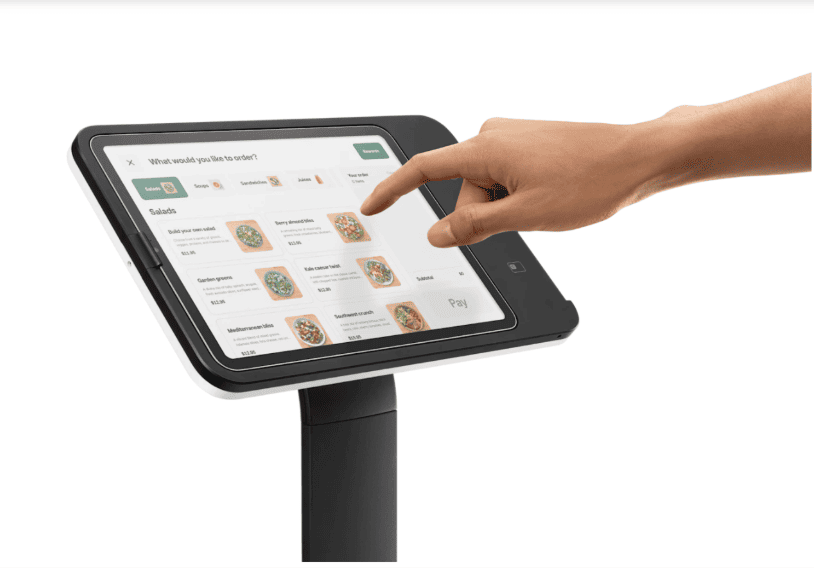
Square self-service kiosk with touchscreen ordering interface, shown in a freestanding setup for restaurant use. (Source: Square)
Toast: Best overall kiosk for restaurants

Pros
- Baseline POS subscription is free
- Guest self-service kiosk kit with accessories available
- QR-coded receipts direct cash payments to a central cashier
Cons
- Requires a two-year contract
- Kiosk cannot accept cash payments
- Expensive kiosk/self-service kit
Why I chose Toast
Toast is consistently our top pick for restaurant POS and more specialized software rankings, from cafe POS to kitchen display systems (KDSes). It stands out because it’s purpose-built for restaurant operations and handles high-volume self-ordering better than most general POS systems. Its self-service kiosk connects directly to the POS and KDS, sends orders straight to the kitchen, and supports SMS alerts and QR-coded receipts so customers can pay quickly without crowding the counter.
The main drawback is cost and commitment. Toast’s kiosk is free upfront only if you agree to higher processing rates, and paid plans can get expensive compared to Square. Still, for restaurants that need durability, speed, and tight kitchen coordination, Toast offers deeper restaurant functionality than more flexible but less specialized systems.
Who should use Toast
- High-volume restaurants and QSRs
- Full-service or fast-casual restaurants with complex menus
- Multi-location restaurant groups
- Operators who want built-in KDS and restaurant-first workflows
Tip: If your restaurant sees heavy traffic or relies on kitchen display systems to keep orders moving, Toast is a better fit than more general kiosk setups.
- Monthly software fees:
- Starter Kit: $0+
- Point of Sale: $69+
- Build Your Own: Custom pricing
- Monthly self-service kiosk fee:
- Upfront payment: $1,339.20 + $99 to $609 per month
- Pay-as-you-Go: $0 upfront
- In-person payment processing rate:
- Standard: 2.49% + 15 cents
- Pay-as-You-Go: 3.09% + 15 cents to 3.69% + 15 cents
- Contract length: 2 years
- Free trial: None
- Free Starter POS: Toast’s baseline Starter Kit POS subscription has no monthly software fees. However, you pay slightly higher processing fees (3.09% + 15 cents vs 2.49% + 15 cents). You can also get up to two terminals, including the self-service kiosk hardware, for $0 upfront with the Starter Kit POS.
- SMS text alerts: The Toast kiosk requests customer phone numbers for kiosk orders and sends them automated alerts when their orders are ready.
- QR-coded receipts: The Toast kiosk cannot process cash payments directly at the kiosk; most affordable restaurant kiosks lack this feature. But, Toast offers a low-cost workaround: QR codes printed at the bottom of receipts. Cash-paying customers present their QR-coded receipt to a central cashier, where it can be scanned and immediately pulled up on the POS terminal.
- Flexible hardware: Your Toast kiosks integrate with barcode scanners and scales. So, if you sell build-your-own salads by weight or packaged ready-to-eat (RTE) and ready-to-drink (RTD) items, your customers can still check themselves out. Since you are not locked into iPads, you can also choose 10”, 15”, or 22” touch screens for your kiosks.
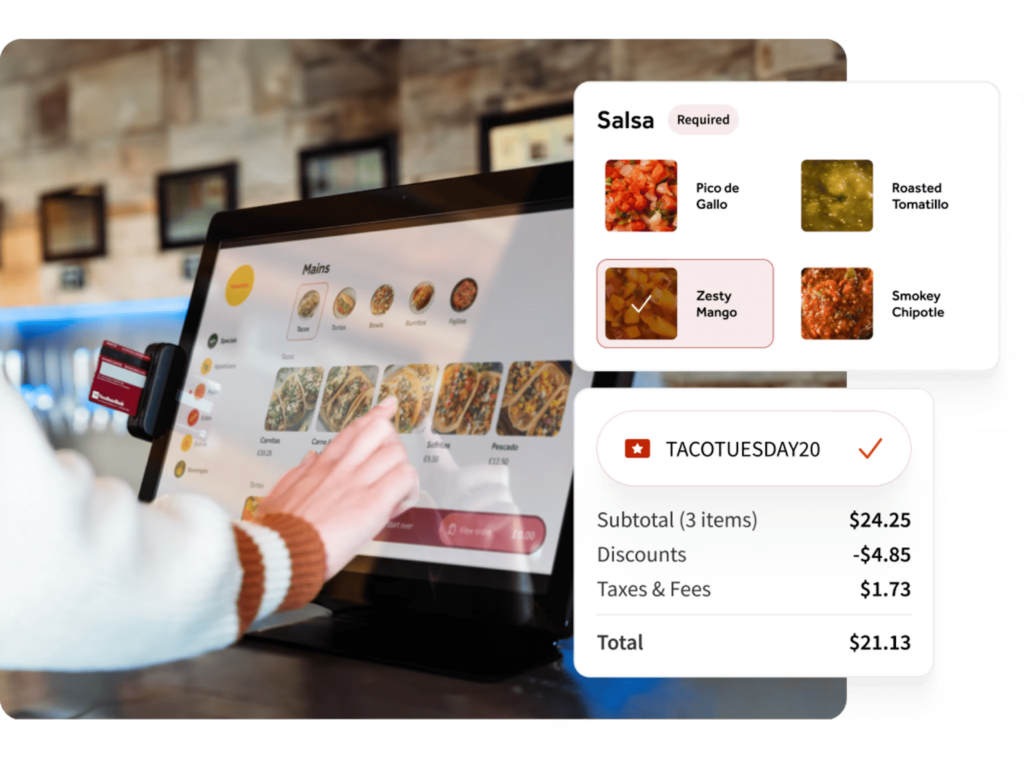
Toast’s self-service kiosk allows guests to be in control of their dining experience and free up staff to handle other duties.
KORONA POS: Best for ticket-selling kiosks

Pros
- You can choose your own payment processor
- RFID integration with kiosks for added security
- No long-term contract
Cons
- Does not have strong tools for restaurants
- Back-office functions can take time to learn
- Hardware can be expensive; pricing not transparent
Why I chose KORONA POS
KORONA POS stood out for ticket-based and high-traffic venues where lines can form quickly and access control matters. Its kiosk tools support time-based ticketing, turnstile integration, and RFID scanning, which makes it well-suited for managing admissions while reducing duplicate scans and losses.
The main drawback is cost transparency. KORONA’s hardware pricing isn’t always clear upfront, and ticketing features require a paid add-on per gate. That said, compared with more restaurant-focused systems like Square or Toast, KORONA offers deeper ticketing functionality, industrial-grade kiosk hardware, and the flexibility of month-to-month plans.
Who should use KORONA POS
- Amusement parks and tourist attractions
- Museums, zoos, and exhibits
- Event venues with timed or gated entry
- Businesses that need RFID or turnstile integration
Tip: If your business relies on ticket sales or controlled entry, KORONA POS is a stronger choice than restaurant-first kiosk systems.
- Monthly software fees:
- Core: $59
- Retail: $79
- Plus: +$20 per terminal
- Food, invoicing, ticketing add-ons: +$10 to $50 per month
- Monthly self-service kiosk fee: Custom-quoted
- In-person payment processing rate: Depends on payment processor
- Contract length: Month-to-month
- Free trial: Unlimited
- Time-based ticketing tools: You can customize the tickets in your KORONA to be tied to specific entry times. This is useful if you need to control traffic flow or if your tickets are for an event with specific start and end times, like a concert.
- Memberships and season passes: Tourist attractions and local parks will love the ability to bill and scan membership cards and season passes. The setup for these ticket types is included in your KORONA POS system; you just have to choose your desired settings. You can further customize memberships by tiers, giving some members access to specific attractions or events.
- Turnstile integration: If your event location or park uses turnstiles, you can set your KORONA-based tickets to integrate with turnstile scanners. This lets you further control traffic flow and manage your entrances.
- Live visitor count: If your venue must adhere to fire codes or other occupancy restrictions, KORONA has you covered. Your POS gives you a live visitor count, so you go beyond simple sales tracking and know your occupancy in real time.
Korona POS self-service kiosk in action. (Source: KORONA POS)
Lightspeed Restaurant: Best tabletop restaurant kiosk

Pros
- Offers kiosk tools for full service and quick service restaurants
- Operates on iPads
- Includes SMS text “order ready” notifications
Cons
- No free POS subscription
- Cannot process card payments or use integrations without internet connection
- Does not currently include tools for handling cash payments for kiosk customers
Why I chose Lightspeed Restaurant
Lightspeed Restaurant earns its spot on this list as a suitable fit for restaurants needing deeper inventory controls and reporting than entry-level kiosk systems provide. Its self-ordering tools support both counter service and tableside ordering, and the software handles complex modifiers, ingredient-level inventory, and customer data in a single system.
The main tradeoff is pricing transparency. Lightspeed’s self-ordering kiosk is sold as an add-on with custom pricing, which can make budgeting harder compared to fixed-price options like Square. Still, for restaurants that want advanced reporting and more flexibility around payments and inventory than Toast or Clover offer, Lightspeed is a strong middle ground.
Who should use Lightspeed Restaurant
- Restaurants with complex menus and modifiers
- Businesses that need ingredient-level inventory tracking
- Operators who want advanced reporting and analytics
- Restaurants that want some flexibility in payment processing
Tip: If inventory control and reporting matter more than upfront kiosk pricing, Lightspeed Restaurant is a solid alternative to more rigid restaurant systems.
- Monthly software fees:
- Essential: $189
- Premium: $399
- Enterprise: Custom pricing
- Monthly self-service kiosk fee: Custom-quoted
- In-person payment processing rate:
- Lightspeed Payments: 2.6% + 10 cents (custom rates available for Premium plan)
- Other processors: Varies
- Contract length: 1 year
- Free trial: None for restaurant POS
- Counter service mode: Lightspeed’s Self-Order software supports two order modes: kiosk and table. In kiosk mode, customers order and pay for their meals in a single transaction before the food is prepared. In table mode, the Lightspeed Self-Order tablet is assigned to a specific table, with your staff assisting guests.
- SMS text alerts: You can set up your Lightspeed kiosk to request customer cell phone numbers. Your team can then send a text alert through the POS when the customer’s order is ready. No calling out names or remembering order numbers.
- Running tabs: Lightspeed supports long-running customer tabs — what you might call “house accounts” — a feature many POS systems lack. This function makes Lightspeed a good fit for social clubs or coworking spaces that mainly serve members accustomed to paying monthly fees. Members don’t need to have their wallets handy if they want to grab a snack. You can simply bill them for their purchases in the same cycle as you do for their membership fees.
- Full inventory functions: Since the Lightspeed kiosk is fully built into your POS, the kiosk will sync with your inventory in real time. Additionally, the system will alert you to low stock. Depending on your subscription level, your Lightspeed POS may even generate a suggested order for you to send to your supplier for efficient restocking.
IT Retail: Best for grocery and market kiosks

Pros
- Affordable plans and custom pricing options
- CRM tools and inventory management
- Offline mode available
Cons
- No free subscription
- Can pay cash at kiosk
- Locked into IT Retail payment processing
Why I chose IT Retail
IT Retail stands out because it’s built specifically for grocery, convenience, and market-style operations where self-checkout needs to move quickly and stay secure. Its self-service kiosks support features like weight verification, internal security doors, and centralized monitoring, which helps reduce shrink while keeping lines moving.
The tradeoff is flexibility. IT Retail isn’t designed for restaurants or ticketed venues, and its feature set is narrowly focused on retail workflows. That focus is also its strength, though, compared with general POS systems, IT Retail delivers stronger inventory control and self-checkout functionality for grocery-style businesses.
Who should use IT Retail
- Grocery stores and food markets
- Convenience stores and small chains
- Discount and specialty retailers
- Retailers that need inventory-driven self-checkout
Tip: If you run a grocery or convenience store and need secure, inventory-aware self-checkout, IT Retail is a better fit than restaurant-first kiosk systems.
- Monthly software fees:
- Starter: $49
- Growth: $99
- Premium: $149
- Potential add-on fees for kiosk
- Kiosk hardware: Custom rates
- In-person payment processing rate: Custom rates; not disclosed
- Contract length: Month-to-month
- Multichannel integration: IT Retail offers tools for selling online such as quick and easy product listing; partnerships for marketing, orders, and deliveries; and integrations with several grocery-specific ecommerce solutions.
- Customer rewards: IT Retail uses a simple, reliable, and customizable loyalty program based on rewards points. When customers earn enough points, they can redeem these for percentage discounts on individual items or entire baskets.
- Security features: The kiosk system includes security features like a remote attendant station for staff to monitor each kiosk, weight verification, internal security doors, and a customizable cashier security level in the POS system settings.
Clover: Best for simple, hardware-first self-service kiosks

Pros
- Wide range of kiosk and POS hardware options for different layouts
- Competitive flat-rate in-person payment processing on higher-tier plans
- Flexible mounting options (floor stand, wall mount, countertop)
Cons
- Full self-ordering kiosk has a high upfront hardware cost
- Kiosk features are restaurant-focused and less flexible for non-food use cases
- Online and keyed-in payment rates are higher than in-person rates
Why I chose Clover
Clover earns its spot because of its hardware flexibility and predictable pricing for in-person sales. It supports multiple kiosk configurations, from countertop and wall-mounted setups to a full self-ordering restaurant kiosk, making it easier to match your layout and traffic flow.
The tradeoff is cost and focus. Clover’s self-ordering kiosk is expensive upfront and best suited for restaurants rather than retail or service businesses. Still, for operators who want an all-in-one kiosk with built-in payments, guided setup, and reliable performance, Clover delivers a solid, low-friction self-service option.
Who should use Clover
- Restaurants adding a dedicated self-ordering kiosk
- Businesses that want hardware flexibility and multiple mounting options
- High-volume in-person sellers who prefer predictable processing fees
- Operators already using Clover POS
- Self-ordering kiosk hardware: $3,499
- Kiosk software: $34.95 per month, per device
- POS software: $0-$129.85 per month, depending on industry and plan
- Contract length: Month-to-month
Payment processing fees:
- In-person: As low as 2.3% + 10 cents on most plans
- Starter plans: 2.6% + 10 cents
- Online or keyed-in: 3.5% + 10 cents
- All-in-one self-ordering kiosk with 24-inch display, payment terminal, and built-in printer
- Supports contactless, chip, swipe, and debit PIN payments
- Optimized self-ordering with menu customization and upsells
- Seamless POS sync with real-time menu updates and order routing to KDS or printers
- Flexible mounting options, including floor stand, wall mount, and VESA compatibility
Why invest in a self-service kiosk
Self-service kiosks help businesses move more customers through ordering and checkout with less friction. By letting customers place orders themselves, kiosks reduce lines, speed up transactions, and keep service moving during peak hours.
- Faster service and shorter wait times: Many customers choose kiosks to speed up checkout, with nearly half of consumers citing faster service as a top reason to use self-service options.
- Higher average spending: Historical data shows that self-service kiosks can boost consumer spending by about 30%, and businesses that implement self-service systems often see higher average transaction values when customers add extras or customize orders. For example, some quick-service restaurant chains have reported significant growth in digital sales and larger order sizes after deploying kiosks in their operations.
- Lower labor and operational costs: Kiosks handle routine tasks such as order entry and payment processing, reducing reliance on front-counter staff and allowing labor to be reallocated to higher-value work.
- Improved order accuracy: By letting customers enter their own orders, kiosks cut down on miscommunication and mistakes, which enhances fulfillment accuracy and reduces costly remakes.
- Better customer experience: Consumers increasingly prefer self-service options, with a majority reporting comfort using kiosks and appreciating the control and convenience they offer.
Configuration options for self-service kiosks
Self-service kiosks come in a few common configurations, and the right setup depends on your space, customer flow, and budget. Below is a quick breakdown of the three most popular kiosk types, along with when each one makes the most sense for a small business.
Floor-standing kiosks
- What they are: Freestanding kiosks placed directly on the floor, often near entrances or ordering areas.
- Best for: Busy restaurants, QSRs, large retail stores, and locations with steady foot traffic.
- Space and traffic: These kiosks need dedicated floor space and work best where customers can queue comfortably.
- Cost and installation tradeoffs: Typically the most expensive option due to larger hardware and mounting requirements, but they offer high visibility and can handle heavy daily use.
Countertop kiosks
- What they are: Compact kiosks that sit on an existing counter, table, or service desk.
- Best for: Small cafes, boutiques, clinics, and businesses with limited floor space.
- Space and traffic: Minimal footprint and easy to fit into current layouts, though they rely on staff or signage to direct customers to use them.
- Cost and installation tradeoffs: Lower upfront cost and simple setup, but less noticeable than floor-standing units during peak hours.
Wall-mounted kiosks
- What they are: Kiosks mounted directly to a wall to save floor and counter space.
- Best for: Narrow spaces, hallways, healthcare check-ins, hotels, and locations with strict layout constraints.
- Space and traffic: Ideal for tight areas and one-direction traffic flow, but placement is fixed once installed.
- Cost and installation tradeoffs: Moderate hardware costs, but professional installation is often required, and relocation is harder later on.
Kiosk configurations compared
If you expect high order volume, go with a floor-standing kiosk. If space or budget is tight, a countertop kiosk is usually the easiest place to start. For narrow or crowded locations, a wall-mounted kiosk keeps walkways clear while still offering self-service.
How much a self-service kiosk really costs
To help you budget realistically, the table below shows ballpark cost ranges for the top self-service kiosk systems, including hardware, software, setup, and ongoing support.
The true cost of a self-service kiosk goes beyond the hardware price. To budget accurately, you need to account for hardware, software, payment processing, setup, and ongoing support over time. I break down what small businesses can realistically expect to pay.
Hardware self-service kiosk costs
Upfront hardware costs vary based on kiosk type and durability. Higher-end units often include commercial-grade screens, enclosures, and peripherals like receipt printers or barcode scanners.
- Countertop kiosks: $300 to $1,200 per unit
- Wall-mounted kiosks: $800 to $2,000 per unit
- Floor-standing kiosks: $1,500 to $4,000+ per unit
Monthly software fees
There are providers that charge a recurring software fee for self-service kiosks per unit or location on top of POS costs. Some providers bundle kiosk software into higher-tier POS plans, while others charge per device.
- Kiosk software add-on: $0 to $100+ per month, per kiosk
- POS subscription (if required): $0 to $150+ per month, per location
Payment processing fees
Payment processing is usually charged per transaction. Some kiosk systems require you to use their in-house processor, which limits rate negotiation. Typical rates range from 2.6% to 3.5% plus a small flat fee per transaction. These fees can add up quickly for high-volume locations, so it’s worth factoring them into long-term costs.
Installation and setup
Setup costs depend on the complexity of your kiosk and location. Floor-standing and wall-mounted kiosks often require professional mounting, electrical work, or network setup.
- DIY tablet-based kiosks: $0 to $200
- Professional installation: $300 to $1,000+ per kiosk.
Support and maintenance costs
Ongoing support helps keep kiosks running smoothly. Regular cleaning and updates are also part of day-to-day upkeep.
- Basic support: Often included with software subscriptions
- Premium support or warranties: $20 to $100+ per month
- Maintenance: Occasional costs for repairs, replacements, or software updates
Contract length considerations
- Month-to-month plans: More flexibility, higher monthly fees
- Annual or multi-year contracts: Lower monthly costs, but less flexibility
Also consider that hardware financing may also lock you into longer agreements.
Self-service kiosk ownership example
Here’s a simple example for a small restaurant using one countertop kiosk with a ballpark three-year total cost:
- Hardware: $800 (one-time)
- Kiosk software: $50/month × 36 months = $1,800
- POS software: $60/month × 36 months = $2,160
- Installation: $150 (one-time)
- Support and maintenance: $30/month × 36 months = $1,080
Estimated 3-year TCO: ~$6,000 (excluding payment processing fees)
TIP: A basic tablet-based kiosk can cost just a few thousand dollars over three years, while larger floor-standing setups can run significantly more. The right choice depends on traffic volume, space, and how much flexibility you want in software and contracts.
How to choose the best self-service kiosk for your business
Choosing the right self-service kiosk starts with understanding how customers order, pay, and move through your space. Once you’re clear on that, compare kiosk options based on hardware, payment flexibility, pricing, and ease of setup. Use the steps below to narrow your choices.
Step 1: Decide on your hardware and software preferences
Self-service kiosks generally fall into two categories:
- Hardware-first kiosks: These are dedicated kiosk devices or kits designed for constant customer use. Systems like Toast, Lightspeed, and Clover offer purpose-built hardware or kiosk accessories that are designed for busy environments.
- Software-first kiosks: These run kiosk software on tablets or third-party hardware. They’re usually more affordable and flexible, but they depend on the durability of the device you choose.
Some providers now offer both. For example, Square supports tablet-based kiosks and proprietary kiosk stands, giving businesses more flexibility.
If you run a high-volume restaurant or retail store, larger stand-alone kiosks or mounted hardware tend to hold up better over time. For quieter locations or tighter budgets, tablet-based kiosks can still handle basic self-ordering and checkout.
Step 2: Match hardware durability to traffic volume
Not every business needs heavy-duty kiosk hardware, but durability matters more as traffic increases.
- High-traffic environments: Look for reinforced stands, locked enclosures, and commercial-grade screens that can handle constant use.
- Lower-traffic businesses: Tablet-based kiosks may be sufficient and easier to move or replace.
In general, hardware designed specifically for kiosks lasts longer than consumer tablets used on their own, especially in restaurants and busy retail settings.
Step 3: Check payment flexibility and cash support
Payment options vary widely by kiosk system.
- Many kiosks support card payments, contactless payments, and digital wallets by default.
- Some systems support cash payments at the kiosk, while others require cash customers to pay at a staffed register.
- Some providers require you to use their in-house payment processor, which limits flexibility on rates.
If cash payments are still common in your business, confirm support early. Payment capabilities often depend on both the hardware and the software plan you choose.
Step 4: Review pricing, plans, and contract terms
Beyond hardware costs, look closely at ongoing expenses.
- Upfront costs: Hardware and installation
- Monthly costs: Kiosk software, POS subscriptions, and support plans
- Payment processing fees: Charged per transaction
- Contracts: Month-to-month vs annual or multi-year agreements
Budget-friendly systems often offer free or low-cost software with optional paid upgrades, while more advanced kiosk setups usually require higher monthly fees or longer contracts. If pricing is custom-quoted, it’s worth asking about discounts, bundles, or financing options.
Step 5: Consider setup time and staff training
The best kiosk system should be easy to manage after launch. If a kiosk system feels complicated to manage during setup, it’s likely to be frustrating long term.
- Look for guided setup tools and clear documentation.
- Staff should be able to update menus, pricing, and availability without calling support.
- Training time should be minimal so kiosks don’t slow down operations.
Alternatives to traditional self-service kiosks
A full kiosk is not the right fit for every business. If you want to test self-service with lower upfront costs or less hardware, these alternatives can work well in the right situations.
QR code ordering
QR code ordering lets customers scan a code with their phone to view a menu, place orders, and sometimes pay. This option is best for businesses that want a lightweight self-ordering option without adding equipment.
- Works well for: Cafes, bars, and restaurants with limited space or tight budgets
- Why businesses use it: Very low setup cost and no hardware to maintain
- Where it falls short: Relies on customers having smartphones and good connectivity; offers less upsell control and visibility than kiosks
Phone-as-kiosk models
Phone-as-kiosk setups use a dedicated smartphone or small device mounted in place for customers to order. These setups can work for low-volume use but are not ideal for heavy traffic.
- Works well for: Small shops, pop-ups, salons, and service businesses
- Why businesses use it: Affordable and easy to replace or move
- Where it falls short: Smaller screens limit menu visibility and ordering speed, especially during busy periods
Tablet-only setups
Tablet-based kiosks run kiosk software on iPads or Android tablets, often using stands or enclosures. Tablet kiosks are a common starting point for businesses that plan to scale later.
- Works well for: Small restaurants, retail counters, and businesses testing kiosks for the first time
- Why businesses use it: Lower upfront cost and flexible setup
- Where it falls short: Less durable than purpose-built kiosks and may need more frequent replacements
Self-service kiosk trends to watch
Self-service kiosks continue to evolve as technology improves and customer expectations change. The trend below is starting to show up more often in larger operations and early adopters.
Voice and AI-assisted kiosks
Voice-enabled and AI-assisted kiosks are beginning to appear in quick-service restaurants and drive-thru environments. For most small businesses, these features are still optional rather than essential. However, they signal where self-service technology is heading, especially for fast-paced food service.
- What they do: Use voice recognition and AI to guide customers through ordering and suggest add-ons
- Who benefits most: High-volume restaurants and drive-thru locations focused on speed and consistency
- Current limitations: Higher cost and more complex setup compared to standard kiosks
Frequently asked questions (FAQs)
A self-service kiosk typically costs $300 to $4,000+ upfront, plus monthly software fees. Tablet-based kiosks cost less, while floor-standing kiosks with commercial hardware cost more.
Self-service kiosks are worth it for small businesses with steady customer volume. They help reduce labor needs, improve order accuracy, and increase average order value through built-in upsells.
Some self-service kiosks accept cash, but many are card-only. Cash acceptance requires extra hardware and higher maintenance, so not all providers support it.
You need a touchscreen device, a secure stand or enclosure, and payment hardware. Some setups also require receipt printers, barcode scanners, or cash acceptors.
Most kiosks integrate directly with a POS or EPOS system so orders, payments, and inventory sync automatically. Native integrations are usually faster and easier to manage than third-party connections.
Modern self-service kiosks are secure when properly configured. They use encrypted payments, follow PCI compliance standards, and restrict access to system settings.
Bottom line
The right self-service kiosk depends on how your business runs day to day. For most small businesses, Square is the easiest and most flexible option, thanks to its low upfront costs, month-to-month plans, and fast setup. Restaurants with high order volume may prefer Toast’s deeper kitchen workflows, while ticketed venues, grocery stores, and inventory-heavy restaurants are better served by more specialized systems such as KORONA POS, IT Retail, or Lightspeed.
If you’re adding a kiosk for the first time or want a system that can grow with your business, Square is the safest place to start. Its affordable hardware, intuitive software, and all-in-one payments make it easy to launch quickly and scale without committing to long-term contracts.
Source link